
System Maintenance
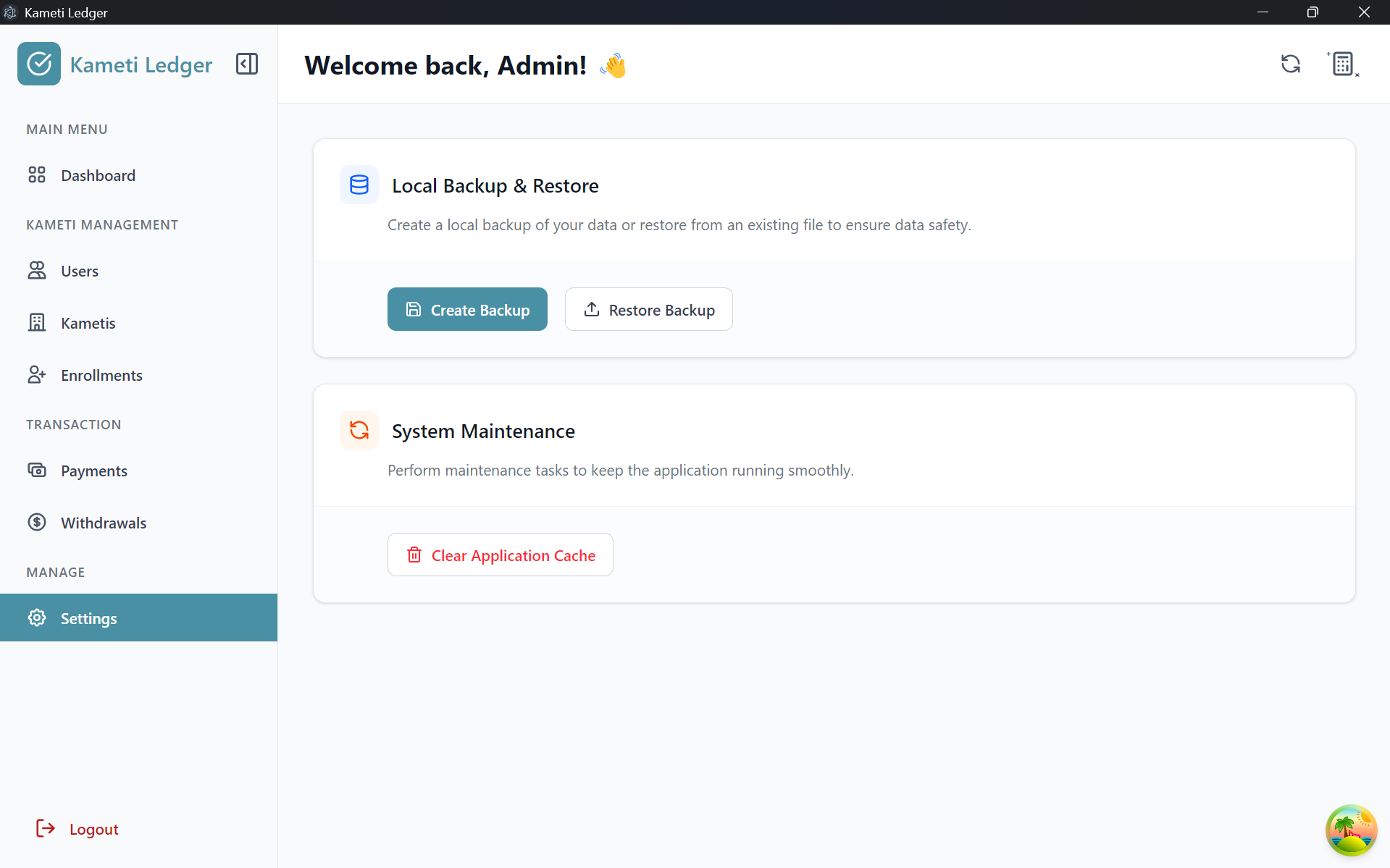
To ensure your application runs smoothly and your data remains safe, the System Maintenance section provides essential tools for managing backups and optimizing application performance.
1. Local Backup & Restore
Why should I create a Backup?
A backup is a secure copy of your application’s data stored in a separate file. We have implemented this feature to prioritize data safety. By creating regular backups, you ensure that even if the application is uninstalled or data is accidentally lost, you can easily restore your records in the future.
How to Create a Backup
- Navigate to Settings > System Maintenance.
- Click on the Create Backup button.
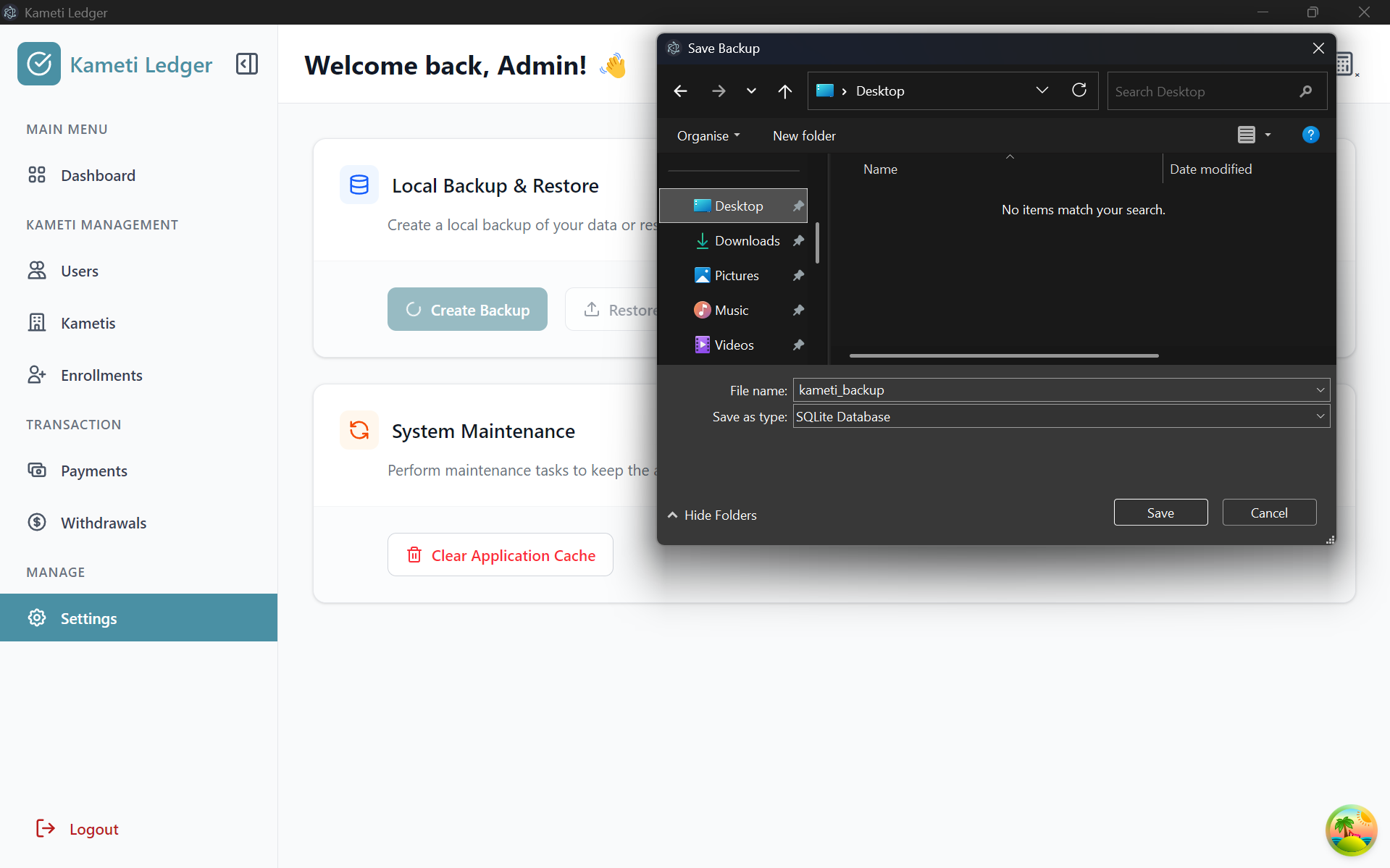
- A file dialog will appear. Select a secure folder on your computer (e.g., Desktop or a dedicated backup folder).
- Enter a name for your backup file (default is
kameti_backup) and click Save.
Local Backup & Restore section in Settings
Selecting a folder and saving the backup file
How to Restore a Backup
- In the same Settings menu, click on the Restore Backup button.
- Locate and select the backup file (
.dbor.bak) you previously saved. - Warning Popup: A message will appear informing you that restoring a backup will automatically delete all existing data currently stored in the application. Please ensure you want to overwrite your current data before proceeding.
- Click Okay to confirm.
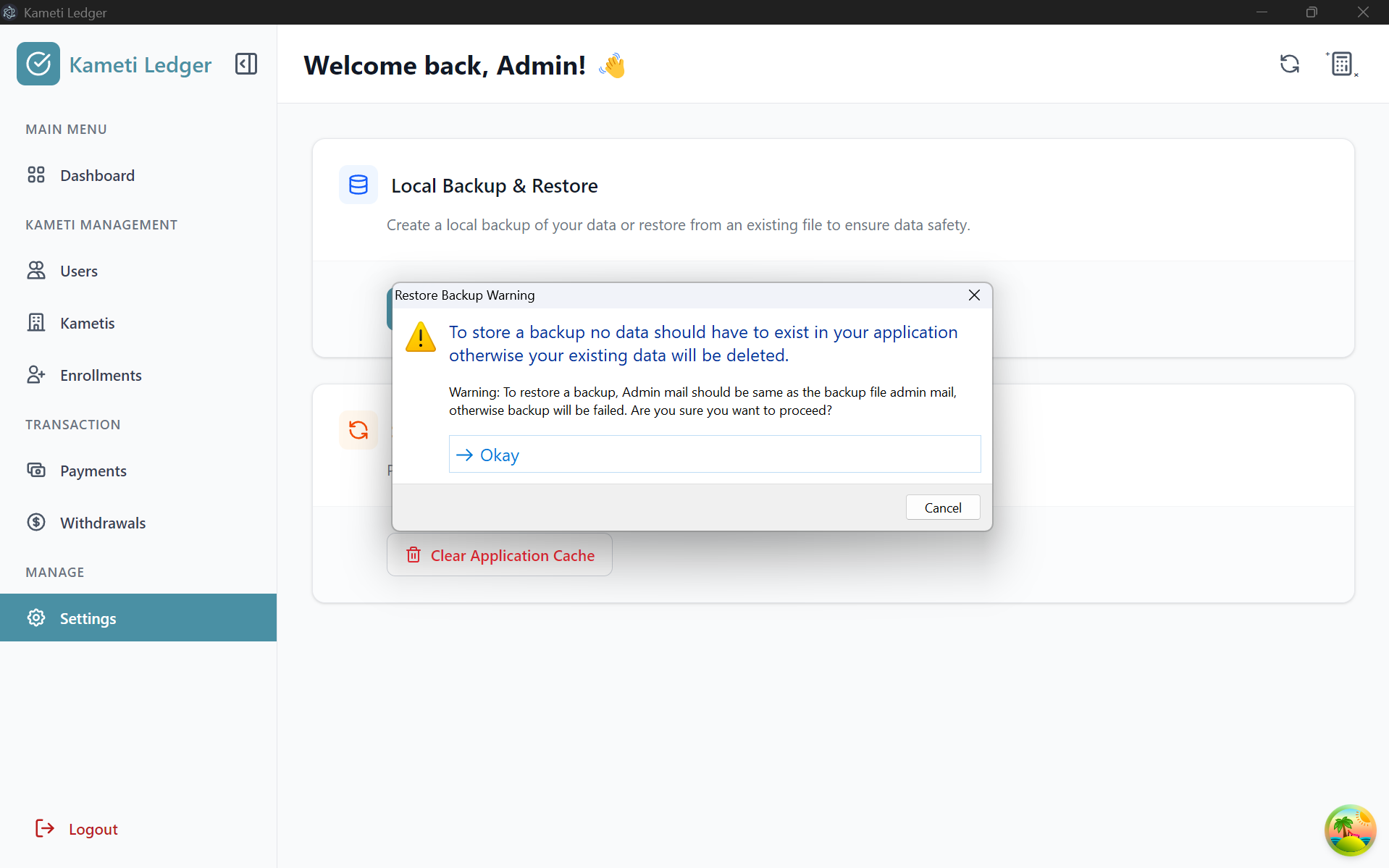
Warning message before data restoration
Security Verification
For security purposes, the system requires that the current administrator’s email matches the admin email stored within the backup file. This prevents unauthorized users from restoring sensitive data.
- If the credentials match, a popup will confirm: “Backup restored successfully.”
- The application will then restart to finalize the restoration process.
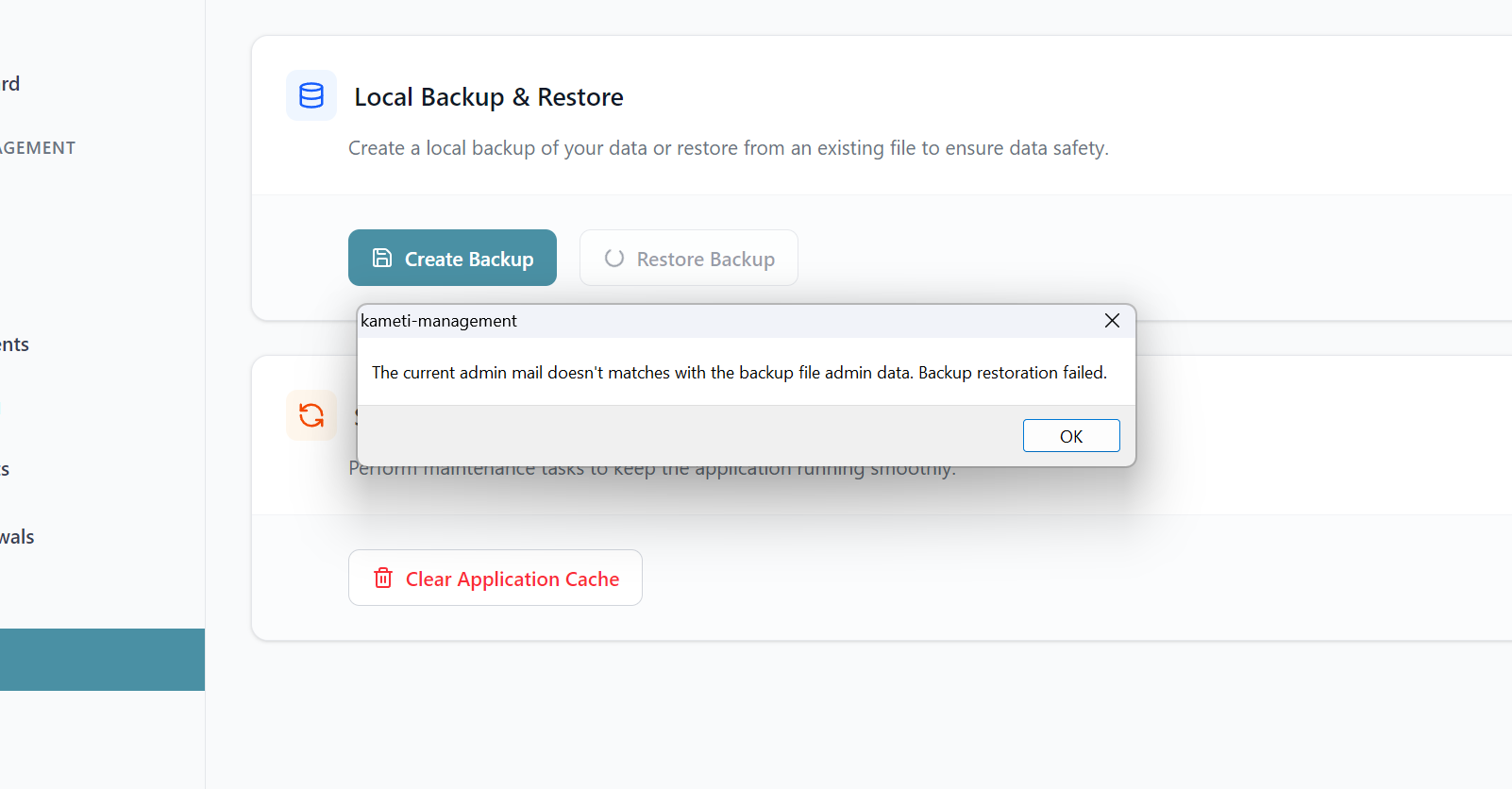
Security error if admin credentials do not match
2. Clear Application Cache
What is Application Cache?
Application cache consists of temporary files and data stored by the app to improve speed and responsiveness.
Why use it?
Over time, these temporary files can become outdated or corrupted, which may cause:
- Slow application performance.
- Minor display issues or glitches.
- Outdated data appearing on the screen.
How to Clear Cache
- Locate the System Maintenance card in the Settings page.
- Click the Clear Application Cache button.
- The application will clear all temporary data and refresh its internal state.
- Note: This process is safe; it only removes temporary files and will not delete your primary data like users, kametis, or payment records.
Clear Application Cache button in System Maintenance