Admin Module
This section covers the initial setup and management tasks for administrators of the Kameti Ledger system.
1. Create Admin Account
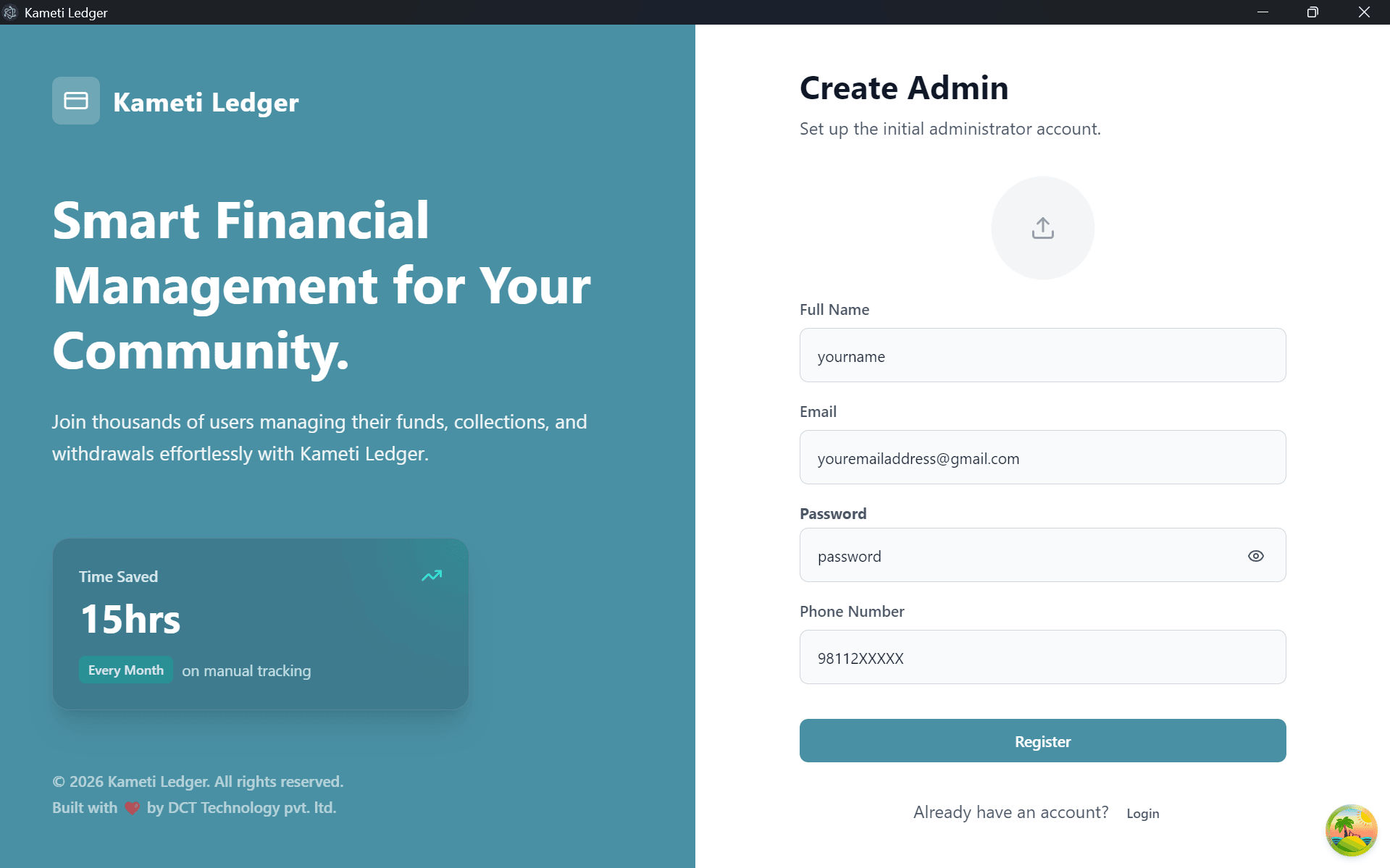
Once the application is installed and launched for the first time, you will be prompted to create an Administrator Account. This account will have full control over the Kameti groups, member verification, and financial reporting.
Internet Connection Required: Please ensure you have an active internet connection while creating the Admin account. Without an internet connection, the registration will fail and show an error.
Fill in your full name, a valid email address, and a secure password.
2. Login to Your Account
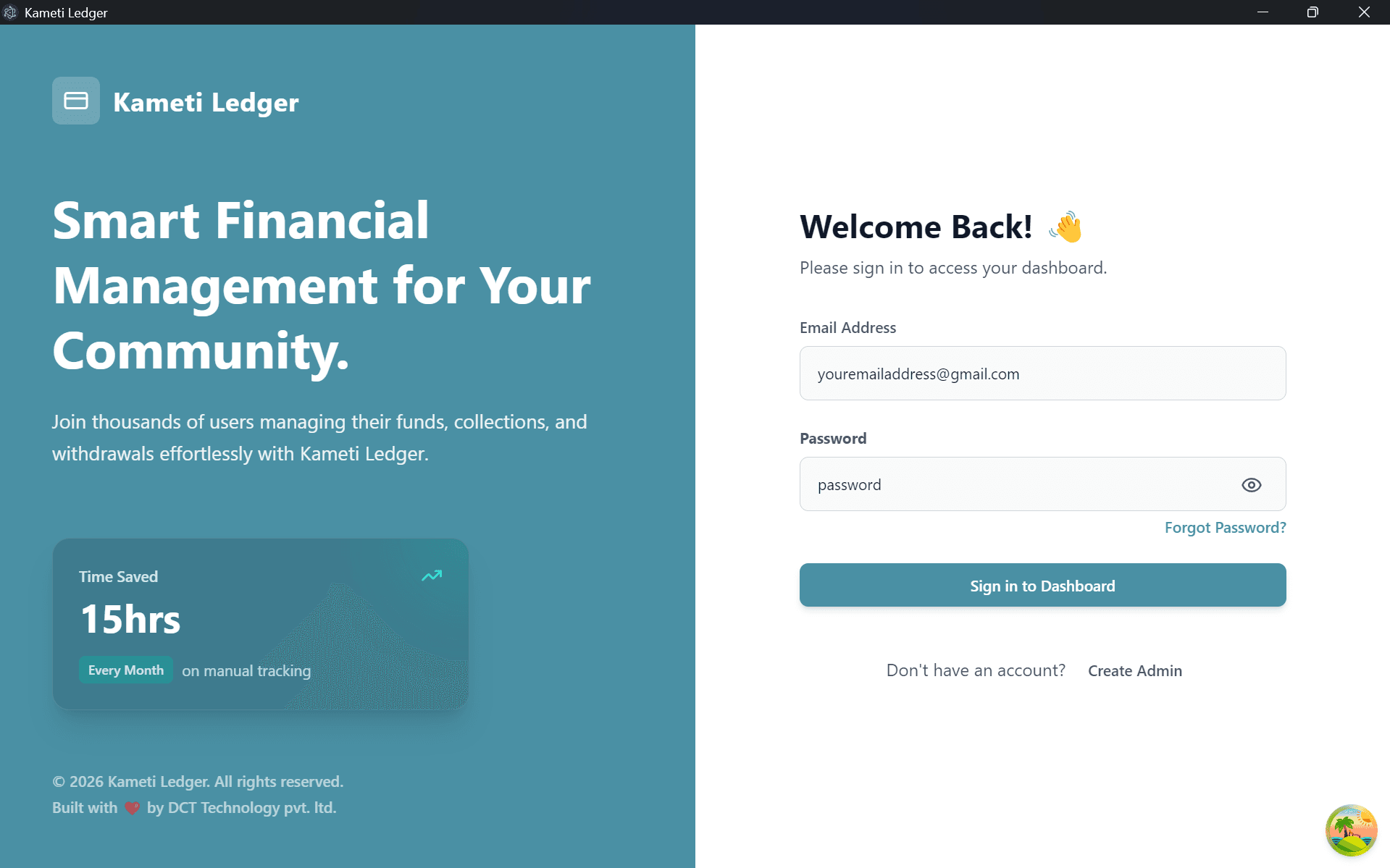
After successfully registering your Admin account, you will be redirected to the login screen. Use the credentials you just created to access the system.
3. Explore the Dashboard
Once logged in, you will be directed to the Kameti Ledger Dashboard. This is your command center where you can see:
- Total Users: Number of verified members in your system.
- Total Kametis: Active and pending saving cycles.
- Financial Overview: Total collections and pending withdrawals.
- Quick Actions: Shortcuts to add a new user or create a new Kameti.
4. Reset Admin Password
If you forget your administrator login password, you can reset it using the Forgot Password feature.
Internet Connection Required: Please ensure you are connected to the internet while resetting your password. The system needs an active connection to send the verification OTP to your registered email.
Step 1: Click Forgot Password
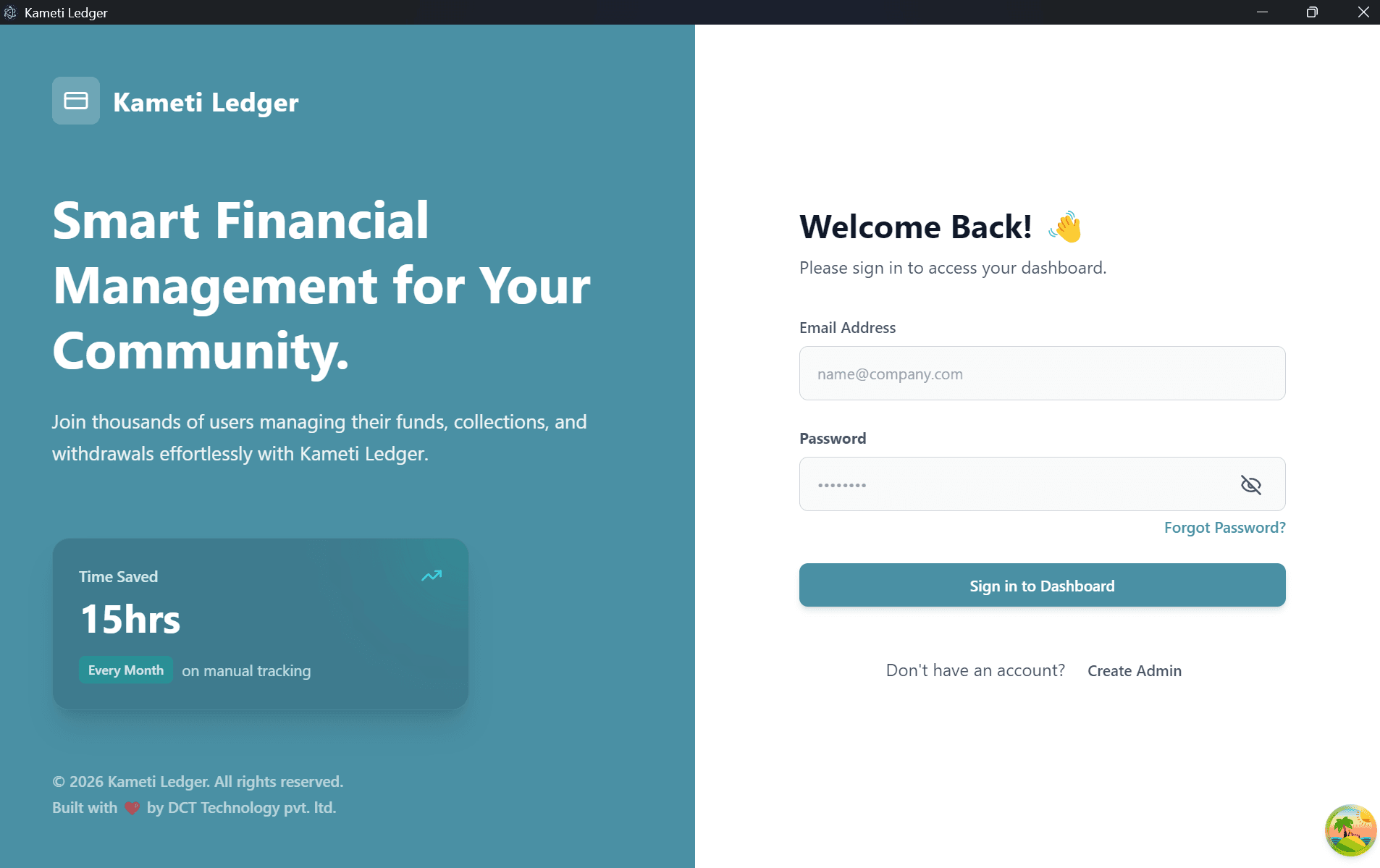
On the login screen, click the Forgot Password? link located below the password field.
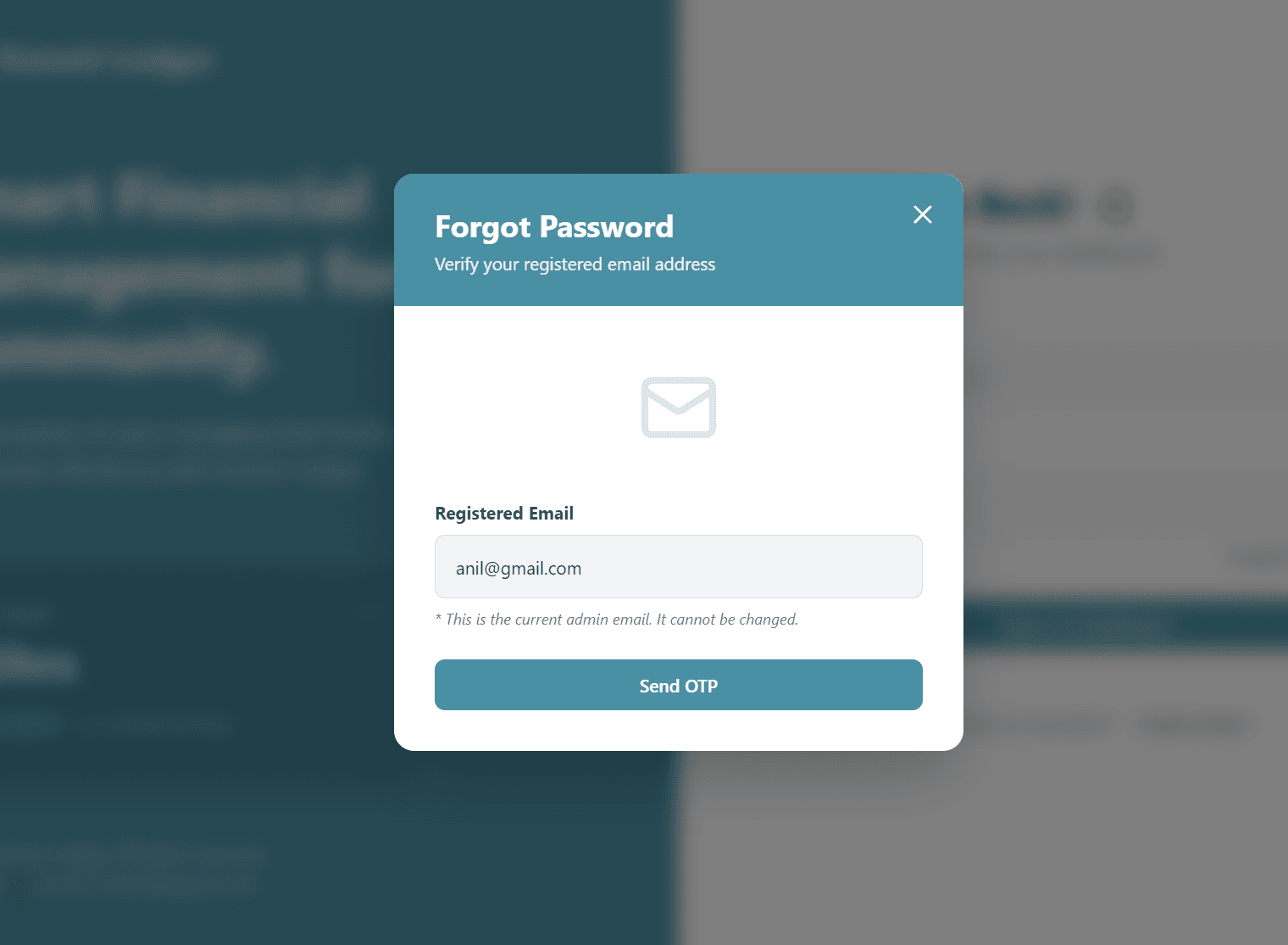
Step 2: Send OTP
A dialog box will appear showing your registered email address. Click the Send OTP button to receive a 6-digit verification code.
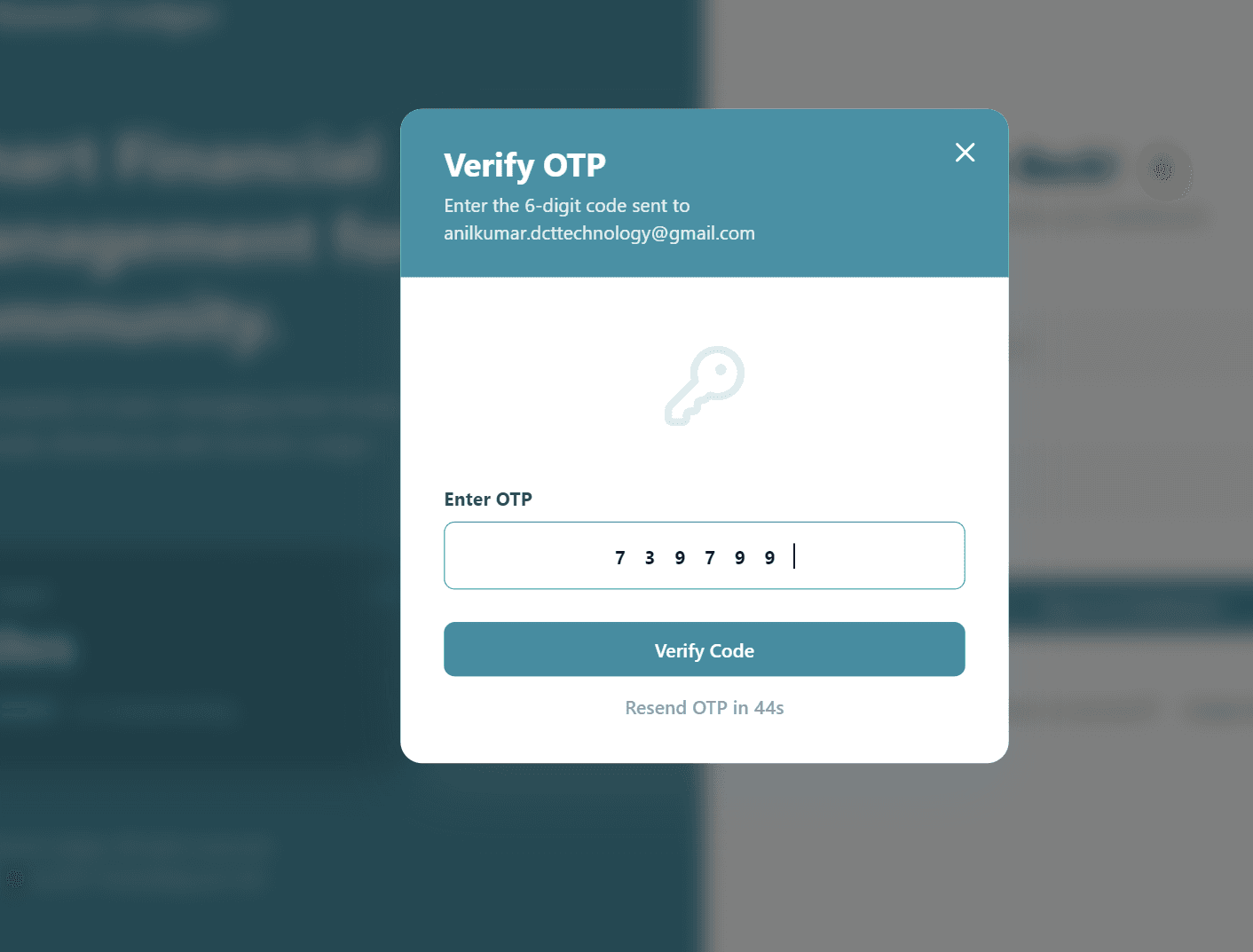
Step 3: Verify OTP
Enter the 6-digit code sent to your email in the verification dialog and click Verify Code.
Step 4: Set New Password
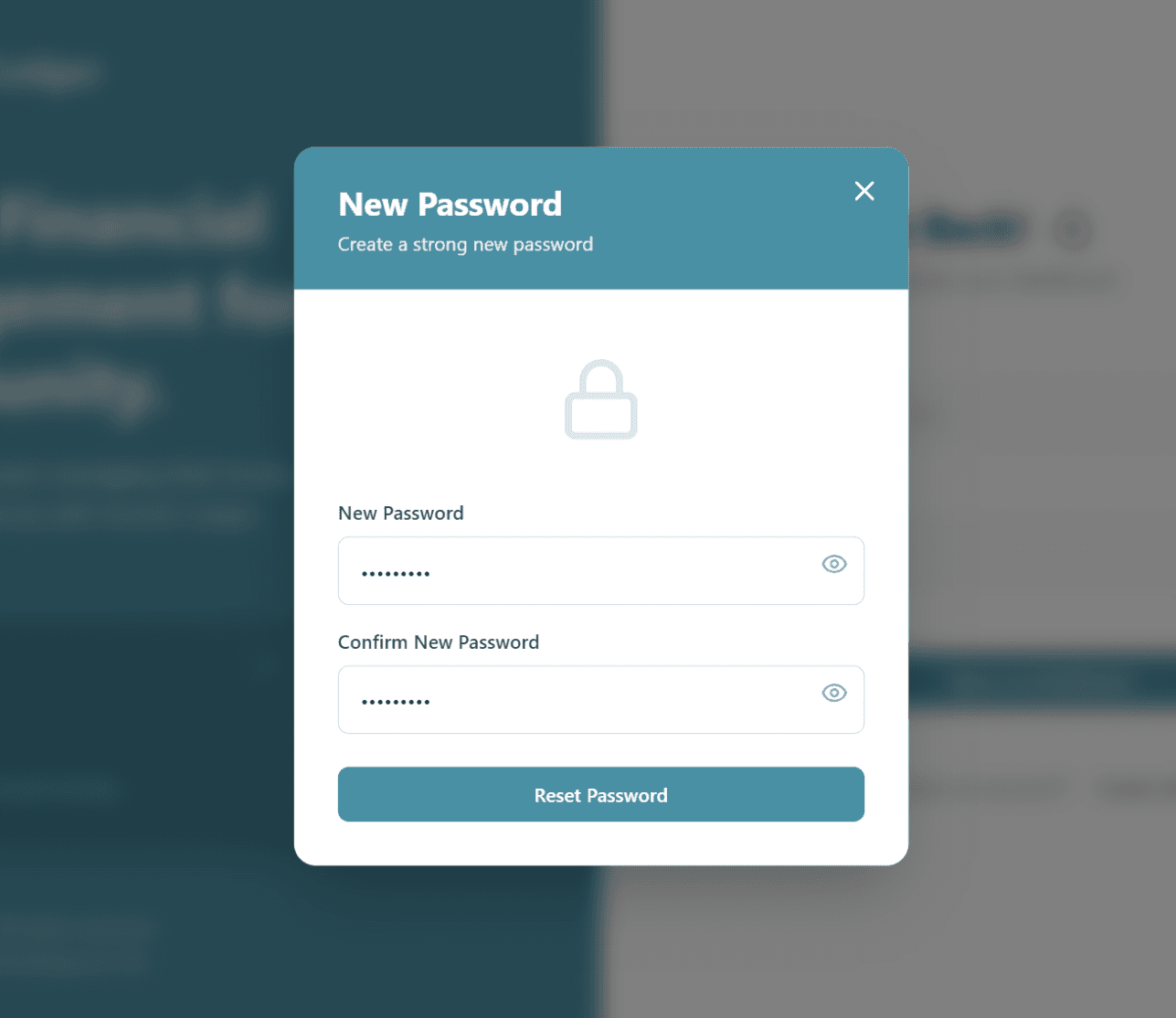
Once verified, you can enter your New Password and Confirm New Password. Click Reset Password to update your credentials.